Migrate an existing site
Bring a Shopify, WordPress, Webflow, Wix, or Squarespace site into Insites Studio.
If you already have a public site, the Migrate on-ramp imports it and rebuilds it as a Studio project. You keep the content, design intent, and product structure; Studio gives you a properly editable codebase running on Insites.
What "migrate" means here
Migration is a one-way capture: Studio crawls the source site, extracts the design fingerprint (palette, fonts, sections), inventories the pages and assets, and asks Claude to produce a migration plan. The plan becomes the scaffold for a fresh Studio project. The original source is untouched.
For ecommerce migrations, Studio uses the source platform's API (Shopify Admin API, WordPress REST, etc.) for products, orders, and customers — see the per-platform Connectors guides for credentials and scopes.
Supported sources
Shopify
Custom App with Admin API scopes.
WordPress
REST API or XML export.
Webflow
Site export + CMS API.
Wix
Public crawl + content endpoints.
Squarespace
Export bundle + API.
Custom
Generic crawl for arbitrary sites.
Before you start
You need:
- The public URL of the site you're migrating from.
- For ecommerce or CMS API migrations: the platform credentials called out in the connector guide.
- A workspace with a connected GitHub repo and a Dev instance.
Plan 30–90 minutes for the on-ramp itself. The actual rebuild work after import depends on the project's scope.
Steps
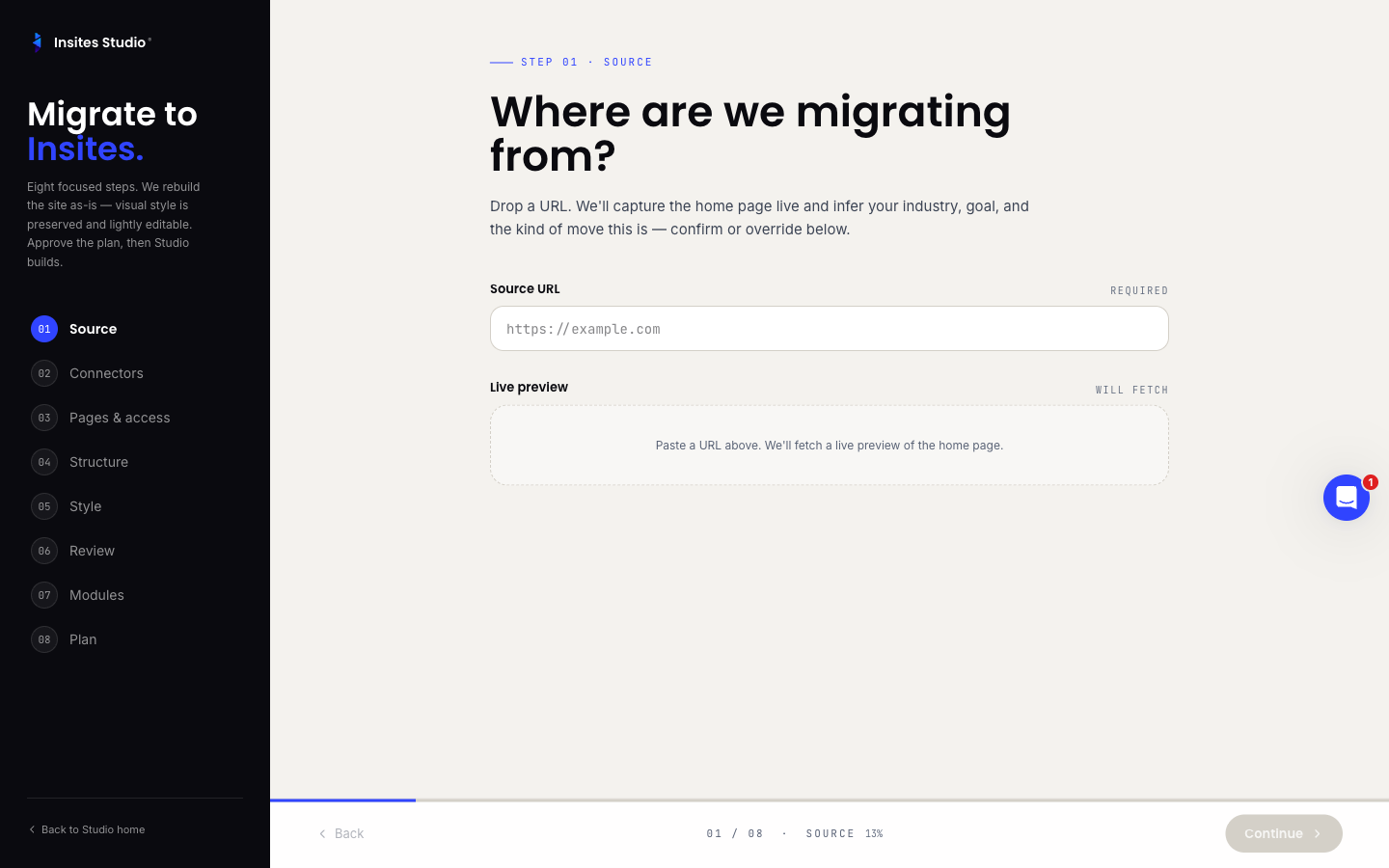
Open the Migrate flow
From the workspace dashboard, click New project → Migrate.
Provide the source
Paste the site URL. If the source platform requires API credentials (e.g. Shopify), the form will prompt for them. The connector guide for your platform lists exactly what scopes to grant — review it before generating the token.
Crawl and fingerprint
Studio crawls the site, captures pages and assets, and extracts a design fingerprint. You'll see:
- A page inventory (what was found, structure, hierarchy).
- The captured colour palette, with swatches.
- The captured fonts, with previews.
- Detected modules (ecommerce, CMS, forms, etc.).
Each of these is editable. If the crawler missed something, you can add it; if it picked up something irrelevant (a marketing pop-up's font, say), remove it.
Review the plan
Studio sends the fingerprint and your notes to Claude and streams back a migration plan — a markdown document covering:
- Site overview.
- Page inventory with proposed Studio routes.
- Module mapping (e.g. "Shopify products → Insites Ecommerce").
- Brand notes (palette, fonts, tone).
- Risks and gotchas.
- Next steps after import.
Read it. The plan is the AI's understanding of what it's about to build. If something's wrong here, it'll be wrong in the scaffold.
Run the migration build
When the plan looks right, click Build. Studio creates the project, runs the importers (products, content, assets), and scaffolds pages from the plan. The deploy panel streams progress.
Open in Studio
The editor opens with the imported project as a draft. The file tree mirrors what was scaffolded; the AI's import notes land as the first chat turn so you have context.
Migration imports rarely produce a perfect 1:1 replica. Expect to spend time:
- Tightening copy that came across awkwardly.
- Reworking sections the importer mapped imperfectly.
- Wiring up integrations that the source platform handled implicitly (analytics, chat widgets, third-party scripts).
Deploy to Dev
Hit Deploy to push to your Dev instance. Validate against the live preview — open the source site side-by-side and walk the key pages.
Re-import if needed
The project's Migration page (
/p/<id>/migration) has the source URL, capture date, and a download link for the scrape archive. If you need to re-fetch the source — say the original site has been updated — you can re-run the import without losing the work you've already done.
What the importer does well, and what it doesn't
Does well:
- Page inventory and route structure.
- Design tokens (palette, fonts, spacing scale).
- Catalog data (products, variants, prices).
- Static content (copy blocks, images).
Does less well — needs your touch-up:
- Custom JavaScript behaviours.
- Third-party widgets (chat, analytics, A/B testing).
- Animations and micro-interactions.
- Anything that lives behind authentication on the source.
Treat the imported project as a strong starting point, not a finished product.
Common questions
Will the migration touch my existing site? No. Migration is read-only. Your source site is unaffected.
Can I import from a private staging URL? Yes, if the crawler can reach it. Public URLs are easiest; private ones need the right access (basic auth, IP allowlist, etc.).
Does the AI re-implement my custom theme code? It produces equivalents using Studio's component patterns. If your source theme had highly custom logic, expect to rewrite that logic in the imported project.