Configure billing
Connect a payment method, pick a plan, and manage AI spend caps.
Studio billing is workspace-level. One plan, one payment method, one monthly invoice that covers every project and every member. AI usage is included up to each seat's monthly Studio Credits budget; the spend cap protects you against unexpected overages.
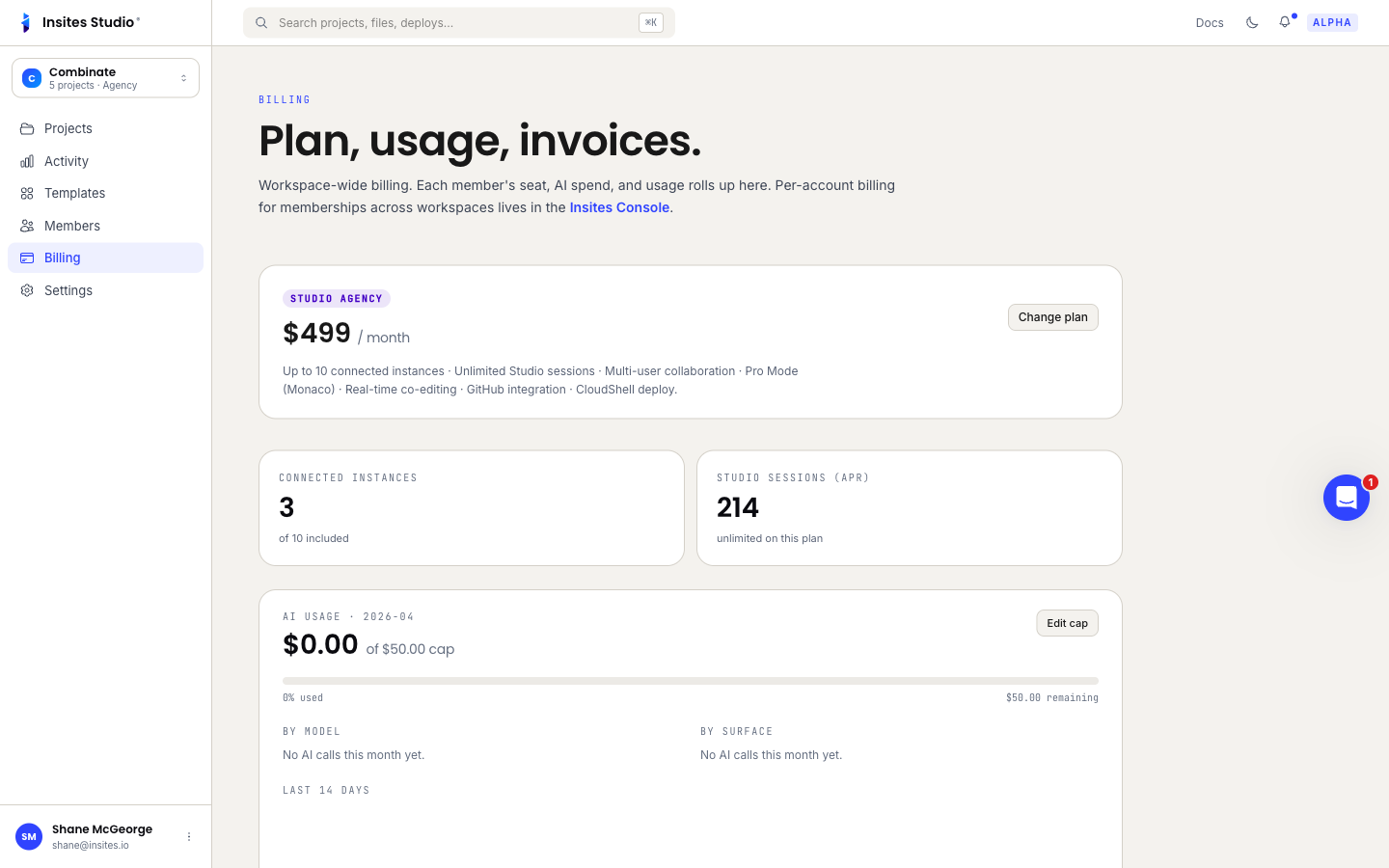
The Billing page
The Billing page lives at /billing. Per-account billing for memberships across workspaces lives in the Insites Console — only workspace billing lives here. The page shows:
- Plan card — tier name (FREE / STARTER / PRO / TEAM), seats in use of seats purchased (with over-allotment warning), included credit budget, Upgrade button, and a link to the public pricing page.
- AI usage for the current month: total spent, Included this month ($X of $Y, resets daily date shown), Top-up balance ($X purchased credits, never expire), Buy credits / Buy more buttons.
- By model breakdown — Haiku 4.5, Sonnet 4.6, Opus 4.7, each with dollars and tokens.
- By surface breakdown — Studio chat, New project planner, Migration plan, Edit Existing.
- Last 14 days chart — plan-inclusion line and burn-rate line.
- Invoices — monthly receipts. Free tier doesn't generate invoices.
Pick or change a plan
Open Billing
Workspace dashboard → Billing in the left nav.
Change plan
Click Change plan on the current-plan card. The available tiers (Free, Starter, Pro, Team, Enterprise) appear with a per-seat price, included Studio Credits, and feature comparison. Toggle monthly / annual billing — annual saves 17%.
Confirm
Select the new tier. Studio prorates the change — you pay the difference on the next invoice. Downgrades take effect at the end of the current period.
Connect a payment method
If your workspace doesn't have a card on file yet, the Billing page shows Add payment method at the top. The card form is hosted by Stripe.
Workspaces always require a payment method to remain active beyond the trial. After the trial, deploys are blocked until a card is on file.
Buy top-up credits
When the included monthly pool runs out, AI pauses and the chat shows a Buy credits prompt. To unblock immediately:
Open Billing
Workspace dashboard → Billing.
Buy credits
Click Buy credits in the AI usage block (or Buy more under Top-up balance). Pay via Stripe.
Top-up credits never expire and are spent only after the included pool runs out each month. The new balance is available immediately — the next AI call goes through.
See Pricing model for the full math behind tokens, models, and surfaces.
Track usage in real time
The AI usage block on the Billing page updates every few minutes. For programmatic access, GET /api/usage returns the same data as JSON.
The 14-day chart's plan-inclusion line versus burn-rate line is the most useful signal — if burn rate is consistently above plan inclusion, you'll need top-ups (or a higher tier) before month-end.
Common questions
What happens when credits run out? AI calls return 402 with a Buy credits prompt. Other Studio actions (editing files, deploys, docs) keep working — only AI is gated.
Do included credits carry over month-to-month? No. They reset on the first of the month. Top-up credits, by contrast, never expire — they roll until used.
Can I set per-user caps? Not today. Billing is per-workspace.
Where do I manage my profile or per-account billing across workspaces? In the Insites Console. The Studio Billing page is workspace-scoped only.